Job cards
One job card for every job. Built from your routine.
Save an annual service as steps once, and every job starts from it. The engineer gets the boat, the steps and your note on their phone, ticks them off as they go, and hands the job back for you to check.
Start a job in six short steps.
Pick the customer, then the boat and its engines. Say what the job is in one line, choose the checklist, and check it over. The job number is issued for you.
You choose whether your screens say boat or vessel, and whether job numbers are issued for you or typed in by you.
- Customer, boat, engines, the work, checklist, review
- One line is enough: it is the headline on the job card
- Serials can wait if you don’t have them to hand
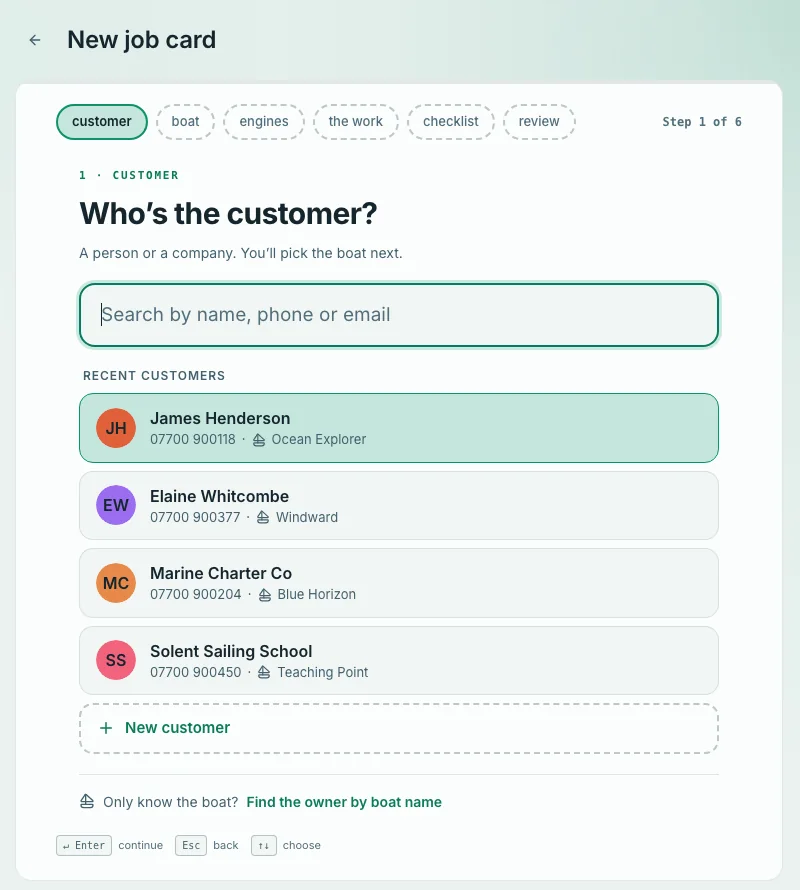
- 1Six steps. Customer, boat, engines, the work, checklist and review.
- 2Search the customer. By name, phone or email.
- 3Or pick a recent one. Their boats come next, or add a new boat.
- 4Only know the boat? Find the owner by the boat’s name.
Creating a job card, as it looks in the app.
Save your routine once. Use it every time.
Say what an annual service involves once. In Settings you can save routine jobs, which the app calls presets: add one, edit its lines in place, drag to reorder, duplicate it and rename it.
When you create a job, tap the routine and its steps drop into the checklist. The job gets its own copy, so changing a routine later never changes jobs you have already made.
- Steps every job starts and ends with, like collect keys and return keys
- Move, add or remove any step on a job: every job can vary
- When you set up, start from ready-made routines such as Winterisation or Lift-out and relaunch, then change the steps to suit
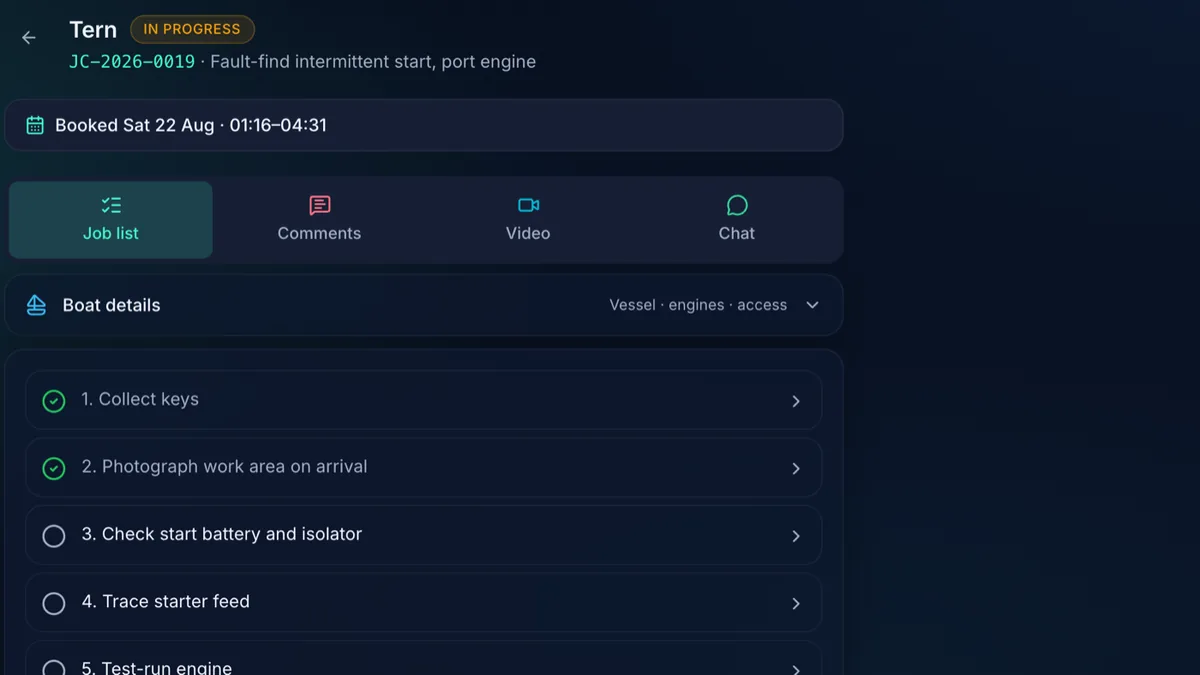
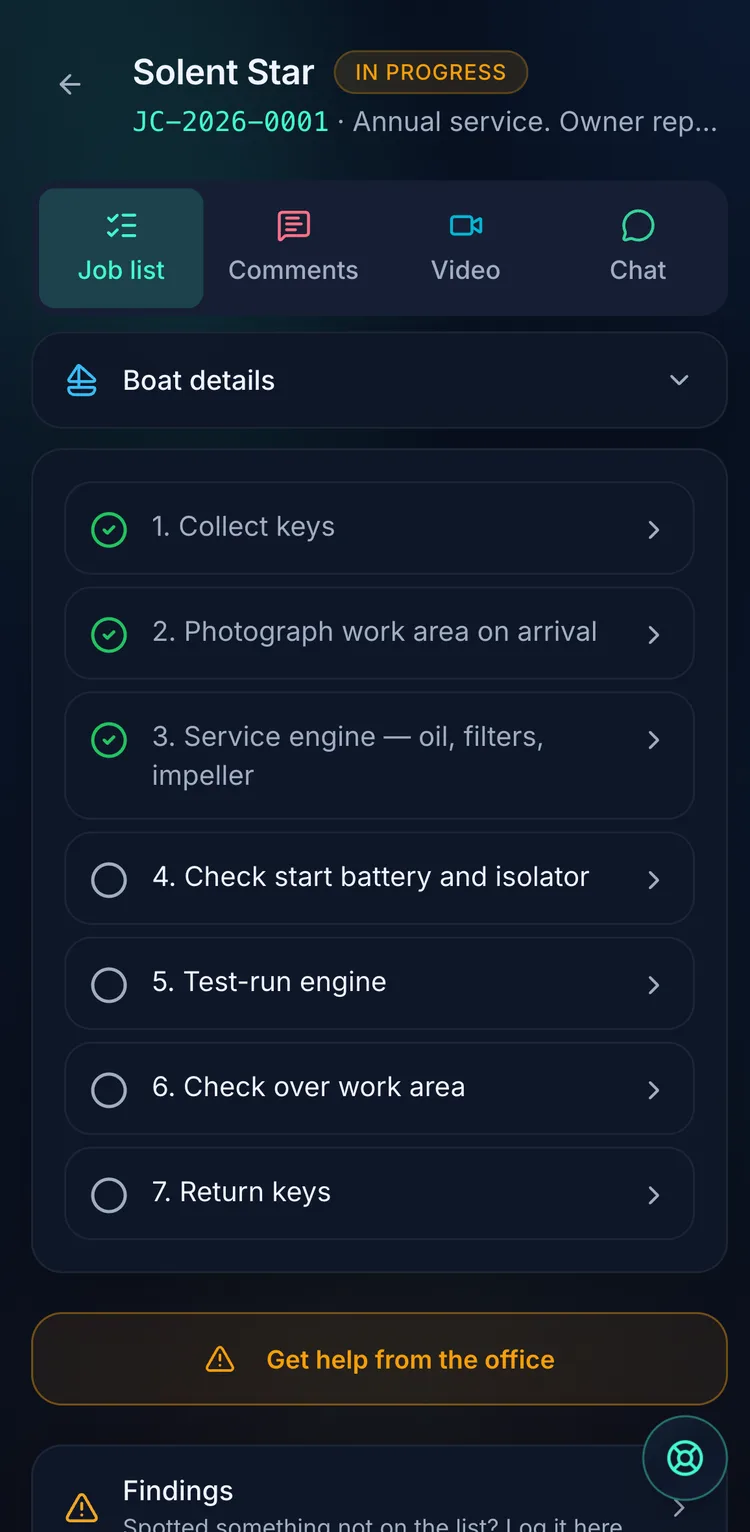
- 1Collect keysstandard
- 2Photograph work area on arrivalstandard
- 3Service engine: oil, filters, impellerroutine
- 4Check start battery and isolatorroutine
- 5Test-run engineroutine
- 6Check over work areastandard
- 7Return keysstandard
An example, drawn for this page.
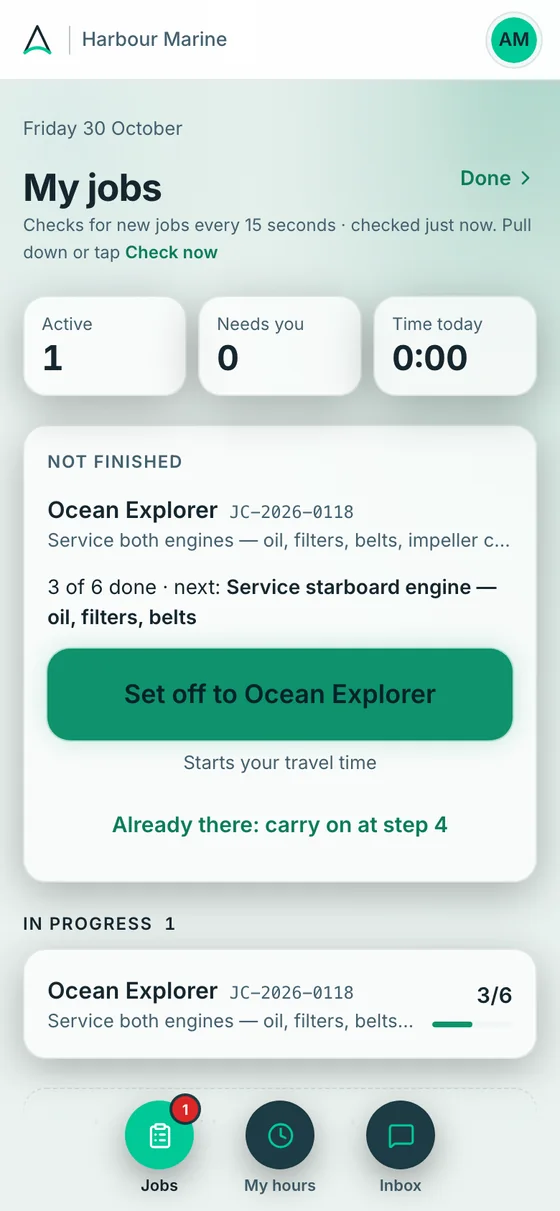
The engineer gets the job on their phone.
The moment you assign it, the job is in their list: the boat, what the work is, what the owner said, and your note, like keys in the marina office and the owner aboard from ten.
It moves from Assigned to In progress by itself when they tick the first step. Tick more than one engineer when you assign it and the first one leads.
- The boat’s make and model, where it is and where the key is
- Change the job once it’s out and the phone says “The office updated this job”, with Review & accept
- Engineers see only their own jobs, and never a price
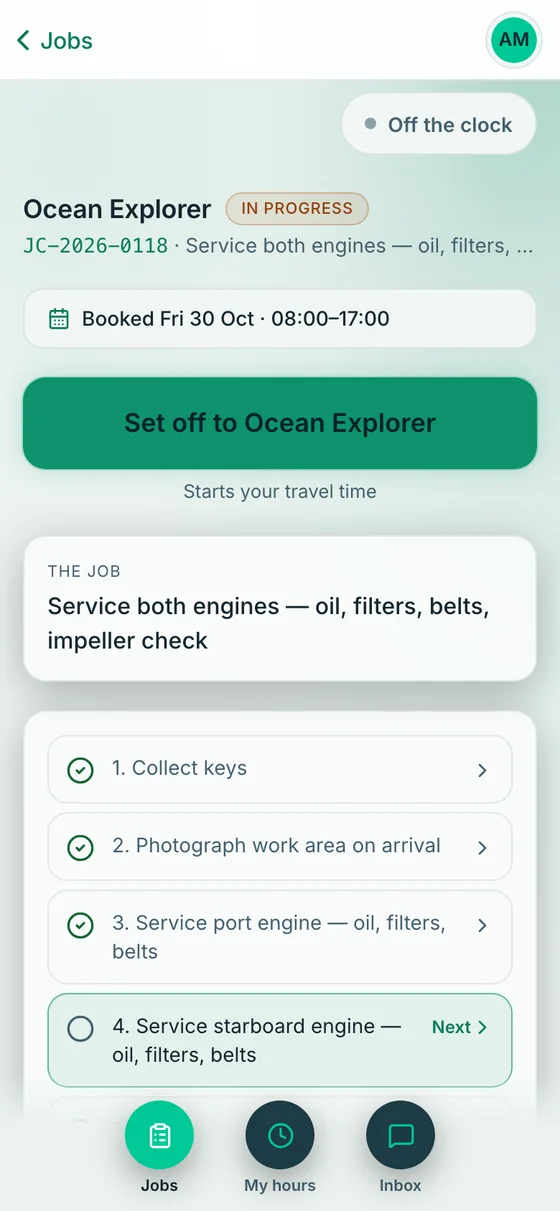
- 1Set off. “Starts your travel time.”
- 2The job. What the work is, and what the owner said.
- 3The steps. Numbered, in the order you set.
- 4Next. The step to do now.
The engineer’s job, as it looks on the phone.
Every job can vary, and the office sees why.
On the job the engineer ticks each step, or taps Can’t do it and picks a reason: Part not on the van, Need a second pair of hands, Owner said leave it, Can’t get to it, or Out of time today. You see the reason on the job.
A company setting decides how far engineers can change the list: read and tick only, add steps and fix wording (the default), or remove your steps too.
- Something else on any step: I used a part, I found a problem, I’m stuck, or Add a step
- Standard steps and approved extra work can’t be renamed or removed by the engineer
- Add a step on the boat, and it shows up in the office
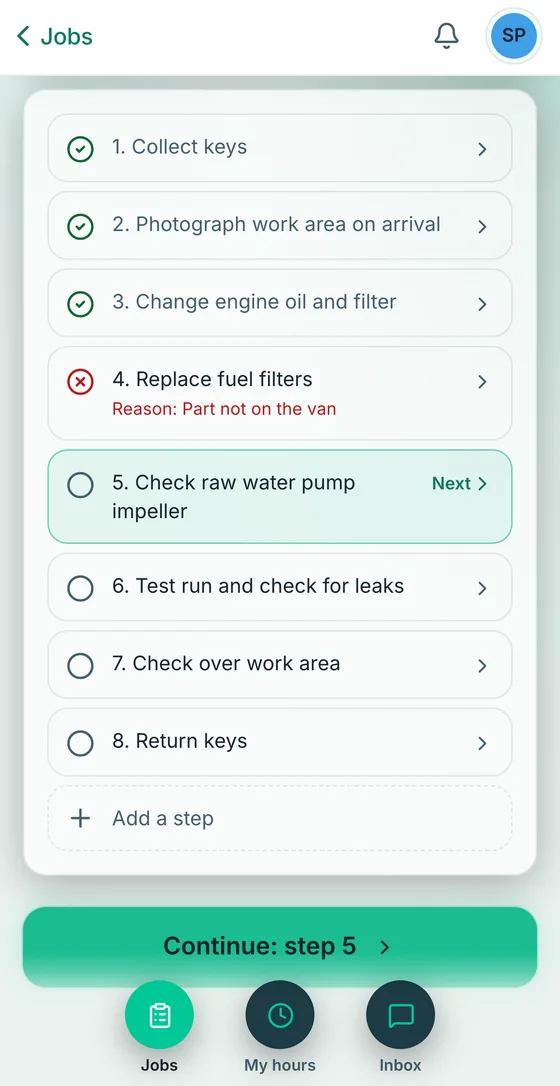
A step crossed off with its reason.
Bring your customers in from a spreadsheet.
You don’t retype your customer list. Download the template, fill in one row per boat (a customer name and a boat name are needed), and choose the file: .xlsx, .csv or .tsv.
You see what will happen before anything is saved. Customers you already have are marked Already here and skipped, never duplicated.
- Engines and their serials come in too
- An old .xls file isn’t read: save it as .xlsx or .csv first
- Customers are matched by name. An existing customer isn’t updated, and new boats aren’t added to them
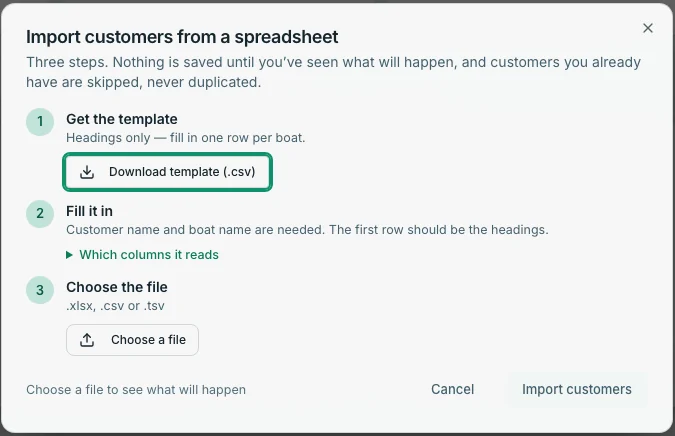
- 1Get the template. Headings only: one row per boat.
- 2Fill it in. Customer name and boat name are needed.
- 3Choose the file. .xlsx, .csv or .tsv.
- 4See it first. Nothing is saved until you have seen what will happen.
Importing customers, as it looks in the app.
Hand in, check, close.
When the last step is done the engineer wraps up: any parts used, anything else wrong on the boat, and a short summary that goes on the customer’s report. Then they hand the job in and it comes back to you.
You look it over. Send it back to the engineer if something is missing, or close it when you’re happy. Closing files it away, and you can reopen it later.
- Share the report with the customer, or export the job card as a PDF
- A closed job can’t have photos, parts or time added to it
- Job numbers are never reused, even if you delete a job
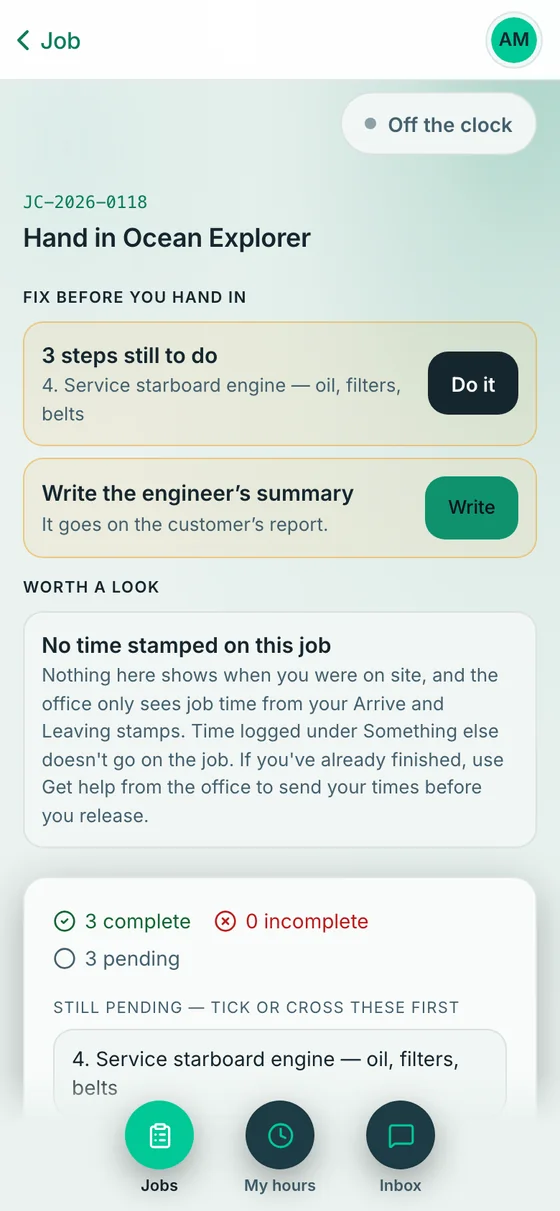
The engineer’s hand-in, and what you see when the job comes back.
Job cards, then and now.
A routine service
Telling the engineer about the job
Getting your customers in
Questions about job cards
What is a job card?
The record of one job. It holds the boat and its owner, the engines, what the work is, the steps the engineer ticks, their notes, photos, parts and times, and what goes in the customer’s report. Each one gets a number like JC-2026-0001, issued for you and never reused.
Can I save my routine jobs?
Yes. Save a routine like an annual service as a list of steps. When you create a job, one tap adds it, and the engineer gets the same steps every time. Changing a routine later doesn’t change jobs you have already created.
Will it remind me when a service is due?
No. KeelSync Service doesn’t schedule repeat services or send service reminders. A routine gives every job the same steps; you decide when to create the job.
Can an engineer change the steps?
Only as far as you allow. A company setting chooses between read and tick only, adding steps and fixing wording (the default), or removing your steps too. Standard steps and approved extra work can’t be renamed or removed by the engineer.
Can I bring my customers, boats and engines across from a spreadsheet?
Yes. You download a template, fill in one row per boat, and choose the file (.xlsx, .csv or .tsv). You see what will happen before anything is saved. A customer you already have, matched by name, is skipped rather than duplicated or updated, and an old .xls file needs saving as .xlsx or .csv first.
Can I keep a service history for each customer's boat?
Yes. Every service, part and photo is kept against the boat, and every clip for 24 months after you send the report, so you can see what was done, by whom and when. Find any job by job number, customer, boat or serial, and each customer’s record lists their jobs.
Does KeelSync Service keep track of parts?
Engineers log the parts used on each job as they go, and the parts show on the customer’s report. It records what was used on each job; it doesn’t count what you have on the shelf.
What does the customer's service report include?
Your company’s name, the work carried out in plain words, the film, every step ticked, what the engineer noticed and what to book next (marked “You approved this” where the owner said yes to extra work), and the parts used.
How do I get started, and do I have to book a demo?
You don’t have to book anything. Sign up with your work email and the app takes you through it: your company and your team, your customer list, your routine jobs saved as steps, and your first job on an engineer’s day. If you get stuck along the way, email hello@keelsync.co.uk and we’ll help.
Save your routine. Start your first job.
Two months free, no card. Setup included. Sign up with your work email and the app walks you through your company, your team and your first job.