Video reports
A video report for every job, sent as one link.
The engineer films a short clip at each stage while they work. KeelSync Service joins the clips into one film with your logo on it, and your customer watches it from one link. No app to install.
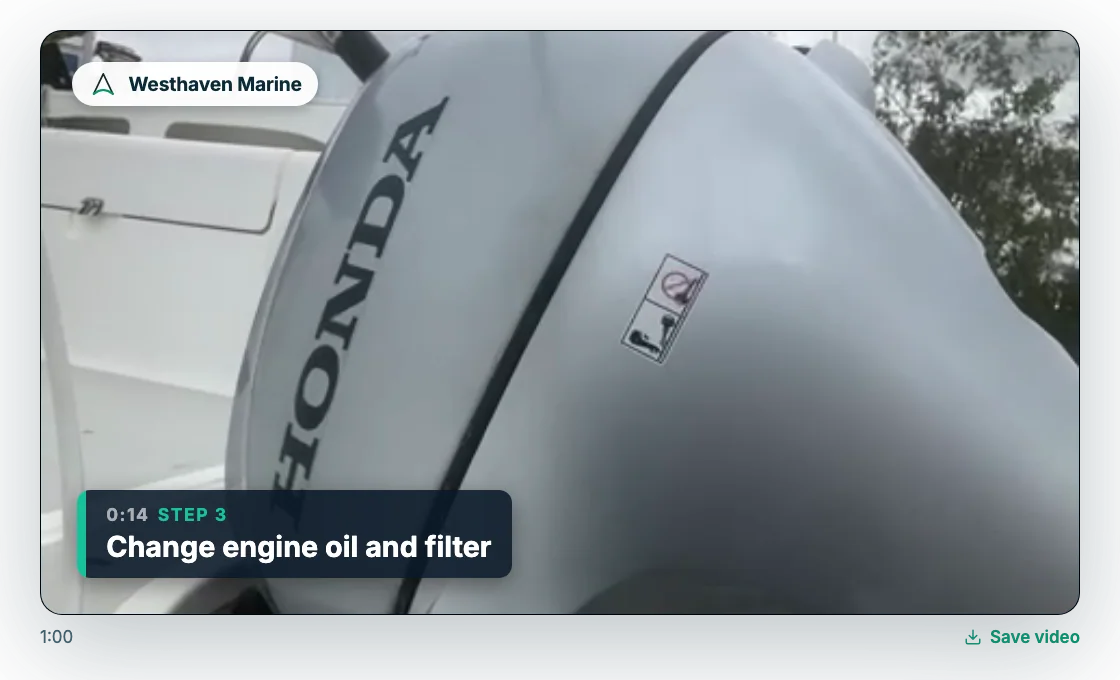
Film as you work.
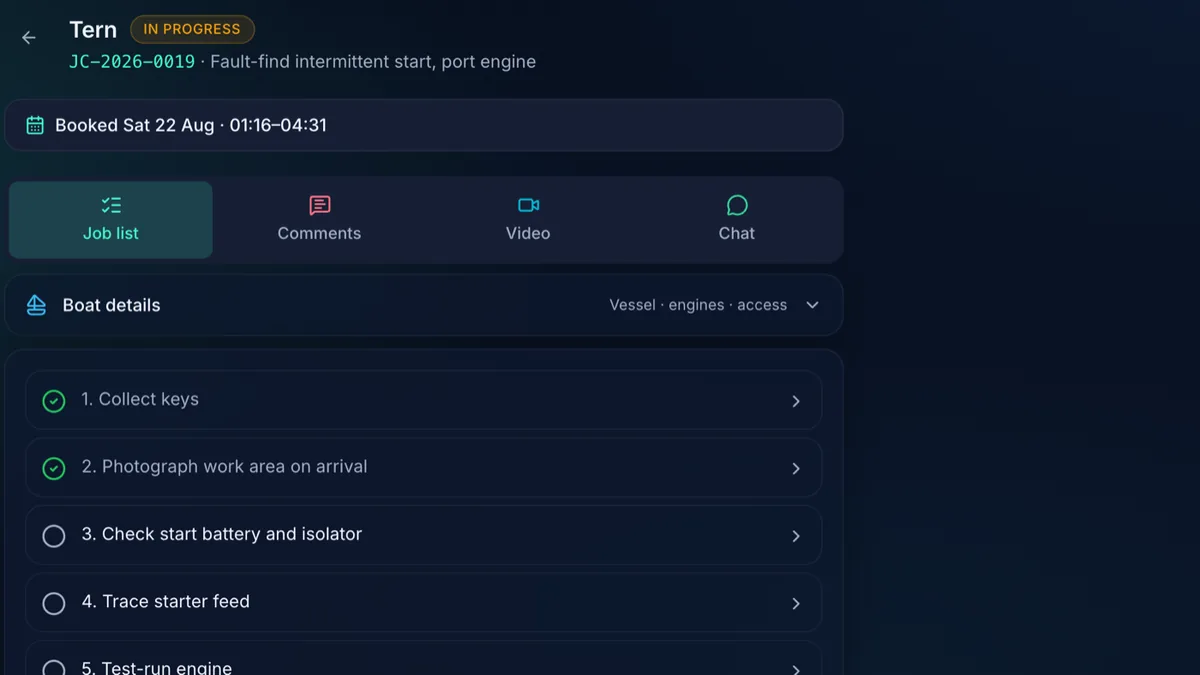
Each step has Film this stage. The engineer taps Film clip, records while they work, then taps Use this clip, or Retake. The app suggests keeping clips under a minute, and its camera stops each clip at two minutes.
Rather use a clip already on the phone? Library takes MP4, MOV and WebM. Nothing is compulsory: if there’s no clip when they hand in, the app only asks, “No clip yet — film before you hand in?”
- A clip for each stage, plus Overview clips for anything that isn’t one stage
- Captions can be added after filming
- The engineer can remove their own clip while the job is out
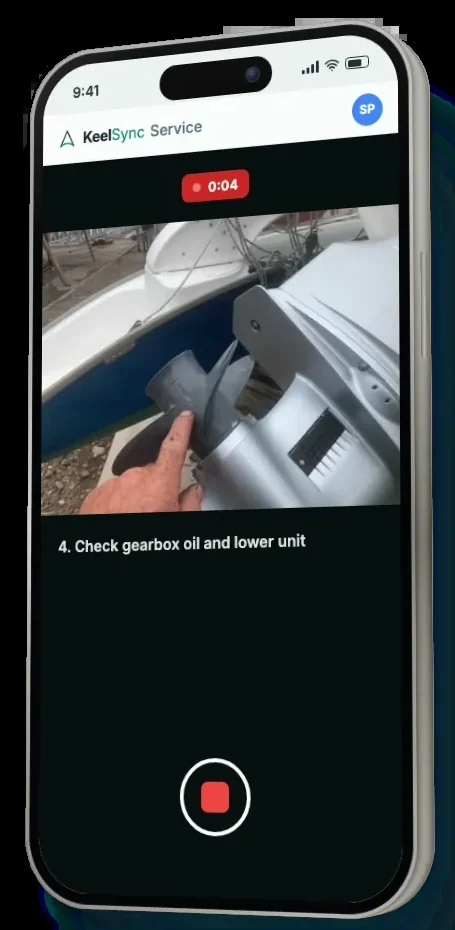
Filming a stage, as it looks on the phone.
Clips upload by themselves.
Each clip is saved on the phone first and sent as soon as there is signal, so a dead spot on the pontoon doesn’t lose anything. The tiles say Waiting for signal, Uploading… or Not sent.
If a clip can’t be sent after three tries it waits with a Retry sending button, and you get a notice that a clip never arrived, so nobody builds a film with a hole in it without knowing.
- Clips are sent while the app is open
- If they hand in with clips still to send, the app warns them the report will be built without them
- You see a clip that never arrived in Needs you now
- ✓Change oil and filter · 0:19 · Sent
- ↑Gearbox oil and lower unit · 0:18 · Uploading…
- …Raw water pump impeller · 0:20 · Waiting for signal
- !Test run, check for leaks · 0:17 · Not sent · Retry sending
- JC-2026-0041 · 1 clip never arrivedFilmed on this job, still on Sam’s phone. The film will be built without it. Ask them to open the job and tap Retry sending.Open video
An example, drawn for this page.
One film, your name on it.
In the office, the job’s Video tab has Build video report. A few minutes later your clips are one film. You can leave the page while it builds, and a customer who already has the link keeps the current film until the new one is ready.
The clips run in step order, with short cross-fades and the sound levelled. Your logo sits in the corner, each clip carries a caption with its step, and the film ends on a card with your company’s name and the job.
- Your logo shows if you’ve uploaded one
- Nothing to edit: there is no trimming, music or voice-over
- If a build fails, the office sees why and can try again
Short cross-fades between clips, the sound levelled, a caption for each step and your logo in the corner.
An example, drawn for this page.
One link, and you stay in control.
From the job, Share report link creates the link. Copy it and send it any way you like, or email it from the dialog: it goes out under your company’s name, and replies go to your company’s contact email if you have set one.
Anyone with the link sees the report, with no login. You see when it has been opened. To stop it, Replace with a new link or Revoke link, and the old one stops working, even on a PDF you have already exported.
- Only one link per job is live at a time
- Opened counts every load, so it can’t tell the owner from someone the link was forwarded to
- Links don’t expire by themselves
Anyone with the link sees the work report: description, checklist, parts, photos and the engineer’s summary. Pay, key locations and access codes are never shown.
Stop this link working
Anyone you’ve sent it to, including on an exported PDF, loses access.
An example, drawn for this page.
What the customer sees.
They open the link on any phone or computer. They see your company’s name and logo, what was done in plain words, the film, every step ticked, the parts used, the photos, and anything the engineer noticed.
You choose which sections show, and in what order, in your company’s settings. The customer can save the video, or download a PDF that is made in their own browser.
- Never shown: prices, engineer names, key locations or access codes
- A PDF can’t play video, so it carries a QR code and link to watch the film online
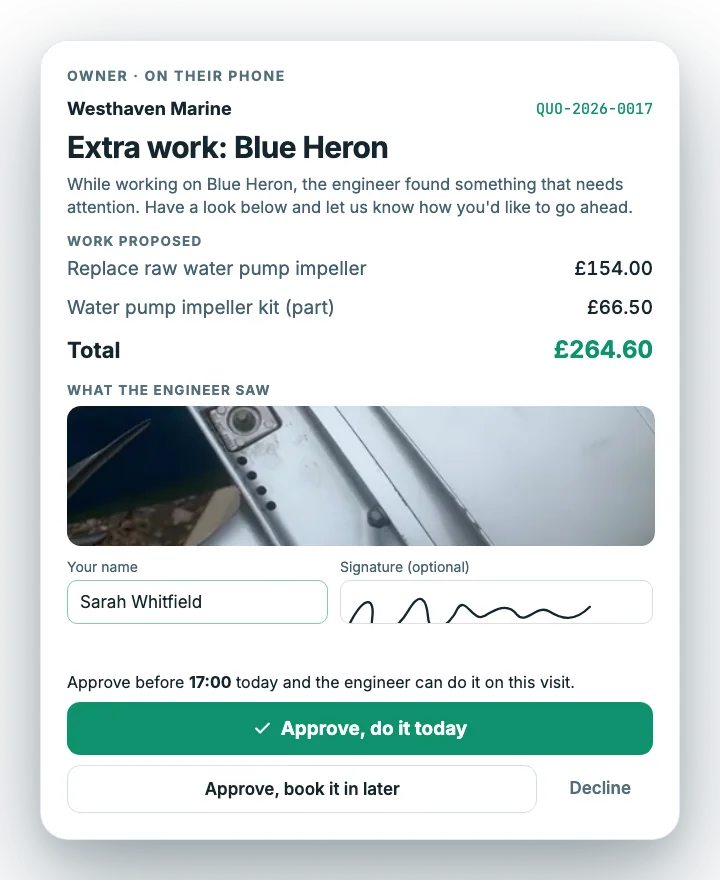
- Extra work the owner approved is marked “You approved this”
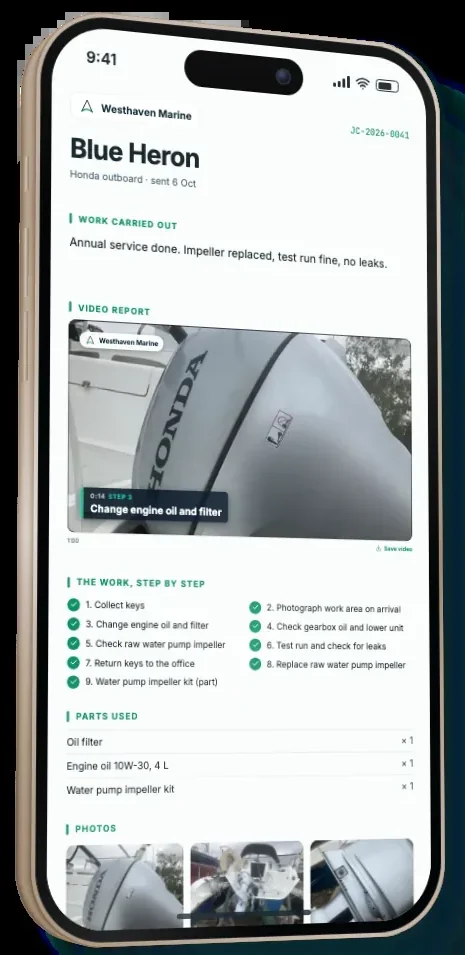
The customer’s report, as it looks on their phone.
Showing the work, then and now.
Proof the work was done
Telling the customer it’s done
Knowing they’ve seen it
Questions about video reports
What does the customer's service report include?
Your company’s name, the work carried out in plain words, the film, every step ticked, what the engineer noticed and what to book next (marked “You approved this” where the owner said yes to extra work), and the parts used.
Do my customers need to install an app to watch their video report?
No. The report is one link that opens in their browser, with your company’s name at the top. They can watch the film, see every step ticked and every part used, and save the video.
Does my engineer have to edit or upload videos?
No. The engineer films a short clip at each stage, on the phone, while they work. The clips upload by themselves, and the office joins them into one film, so there is nothing to edit and nothing to write up.
How long can a video be, and does storage cost extra?
Each video can be up to two minutes. Storage is included in the price, with no fair-use rule. Videos, including the finished film, are kept for 24 months after you send the report, then deleted. The job record, written report and photos stay.
Will the engineer’s app still work with no phone signal?
Yes, once the job is open on the phone. Ticks, notes, parts, photos, film clips and time stamps are saved on the phone and sent when the signal is back, so the engineer keeps working. Handing in, chat, asking for help and changing the list of steps need a signal.
Can I see when a customer has opened their report?
Yes. Under the link in the share dialog it says Not opened yet, Opened once, or Opened N times with the last time. Every load counts, so it can’t tell the owner from someone the link was forwarded to.
Can I stop a link from working?
Yes. Replace with a new link, or Revoke link. The old link stops working, including on a PDF you have already exported. Links don’t expire by themselves.
Does the film build by itself?
The office presses Build video report on the job, and it takes a few minutes. KeelSync can switch on automatic building for your company, which builds the film for you after the job comes back.
Can I edit the film?
No. There is no trimming, music or voice-over. The clips run in step order, with the overview clips last.
Can the customer download the video?
Yes. The report has a Save video link and a Download PDF button. A PDF can’t play video, so it carries a QR code and link to watch it online.
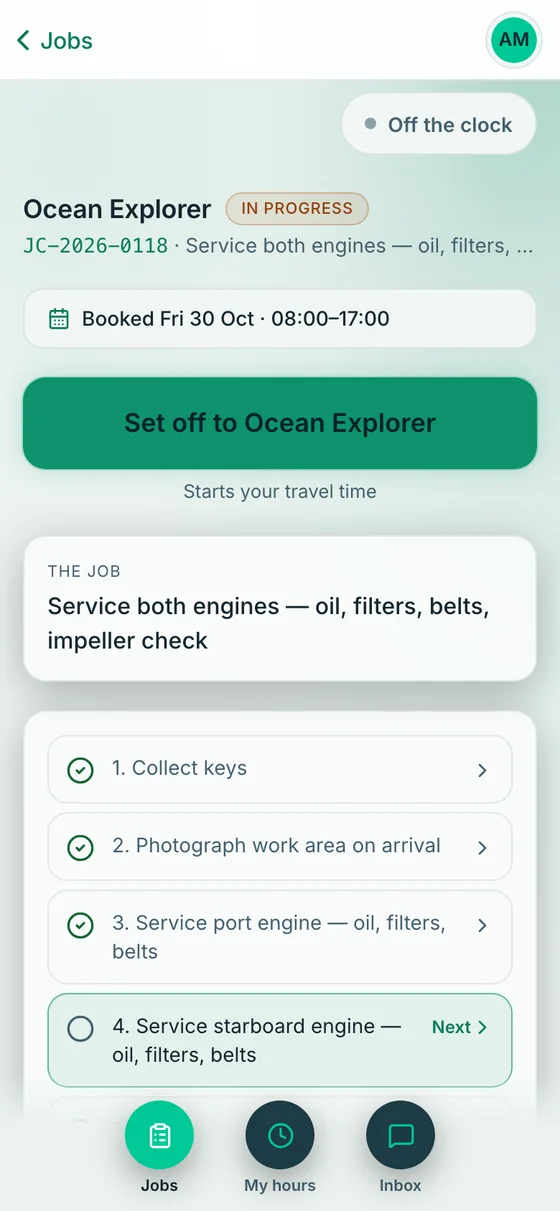
Film the work. Send one link.
Two months free, no card. Setup included. Sign up with your work email and the app walks you through your company, your team and your first job.