The planner
Every engineer’s week, on one board.
Drop a job on an engineer’s day in the office. A moment later it’s on their phone with the boat, the steps and your note.
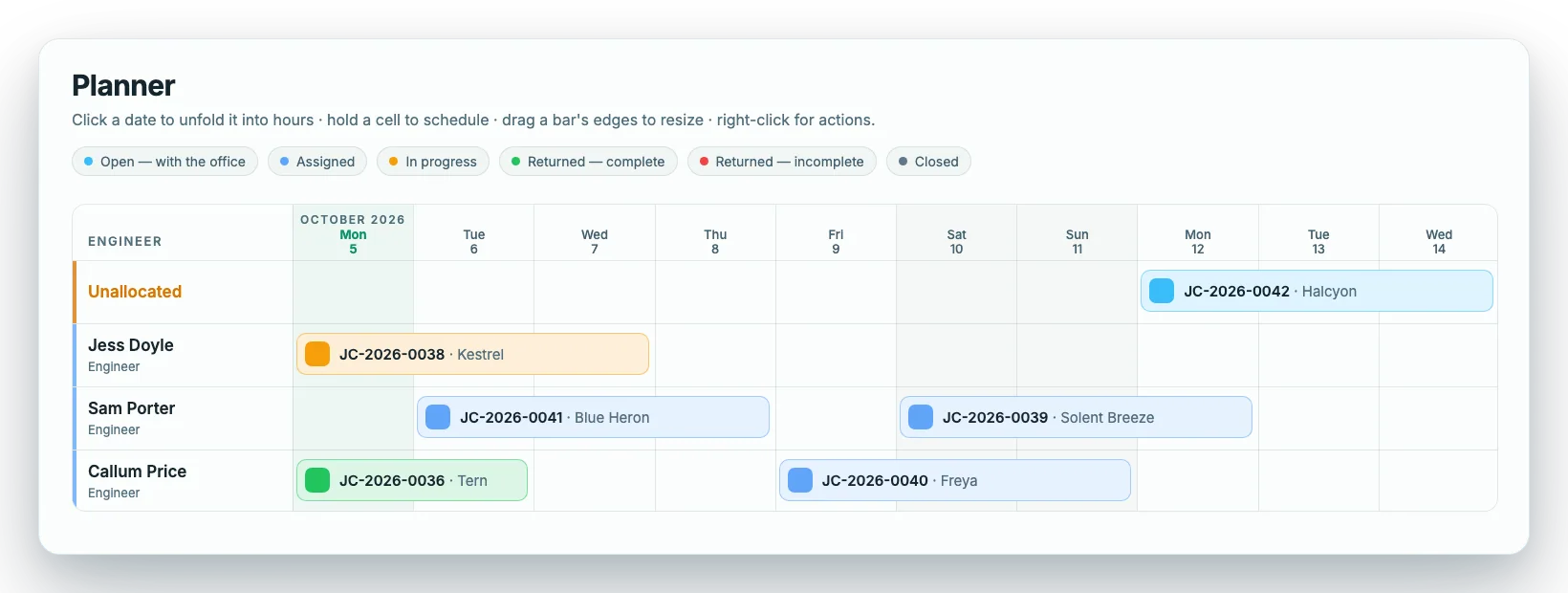
Put a job on a day in three ways.
Hold a cell for a moment, drag across the days you want and let go, then pick the job from a list you can search by job number, boat or customer. Or drag a job’s bar to another day, or onto another engineer’s row. Or right-click a bar to assign or reassign it.
If the engineer is already booked over those dates, you are told when you save. It warns you; it never blocks you.
- Click a date to unfold it into hours
- Drag a bar’s edges to change the days it covers
- Right-click for the actions on a job
- Jobs with a date but nobody on them wait in the Unallocated row
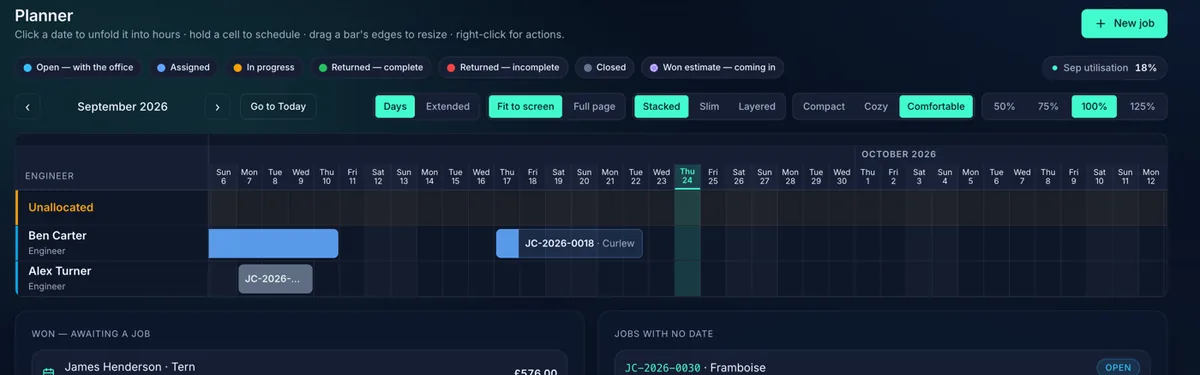
Swipe sideways to see the whole screen.
- 1The stages. Open with the office, assigned, in progress, returned complete, returned incomplete, closed, and won estimates coming in, each in its own colour.
- 2Utilisation. The share of this month’s engineer-days that have a job on them that isn’t closed.
- 3Unallocated. A job with a date and nobody on it waits here. Drag it onto an engineer.
- 4The bars. Drag a bar to move it. Drag an edge to change the days.
The planner as it looks in the app.
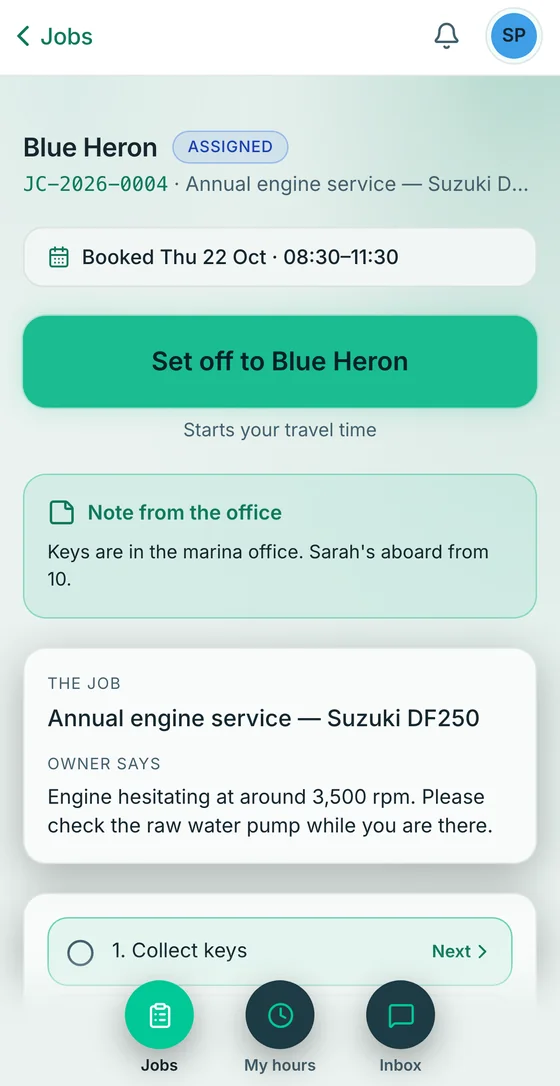
It lands on the phone.
The moment you assign a job it shows in the engineer’s list, with a chime if the app is open. If they have switched notifications on, they get a New job notification too. On an iPhone, notifications need the app added to the home screen.
The engineer sees the job before they leave the van: where the boat is, what to do, and what you want them to know, such as keys in the marina office and the owner aboard until ten.
- A job card with the steps, the boat and your note
- Tick each step as the work gets done
- Stuck? They tell the office from the job
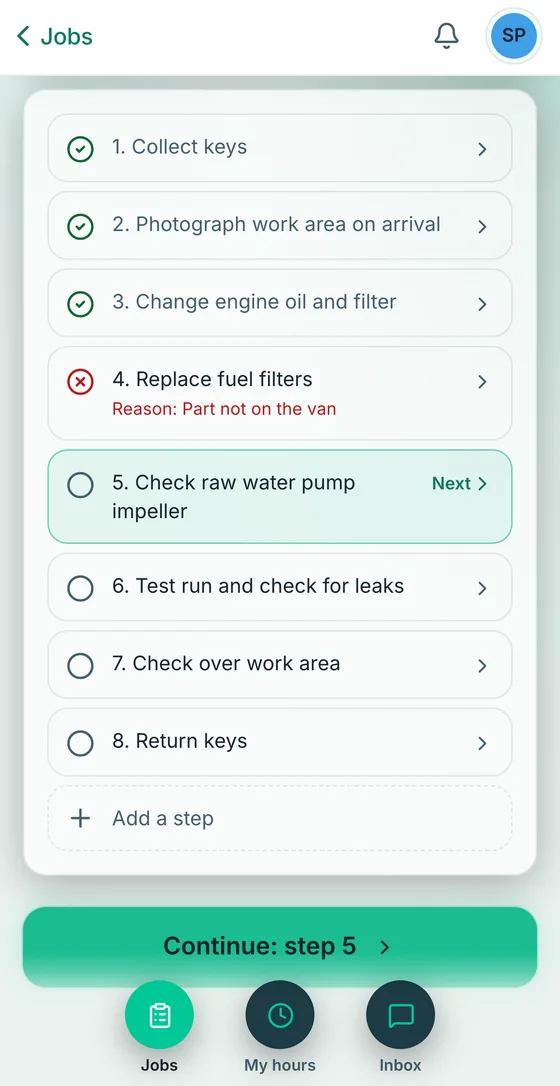
The engineer’s phone: the job, the note from the office, and the steps.
Plan against what happened.
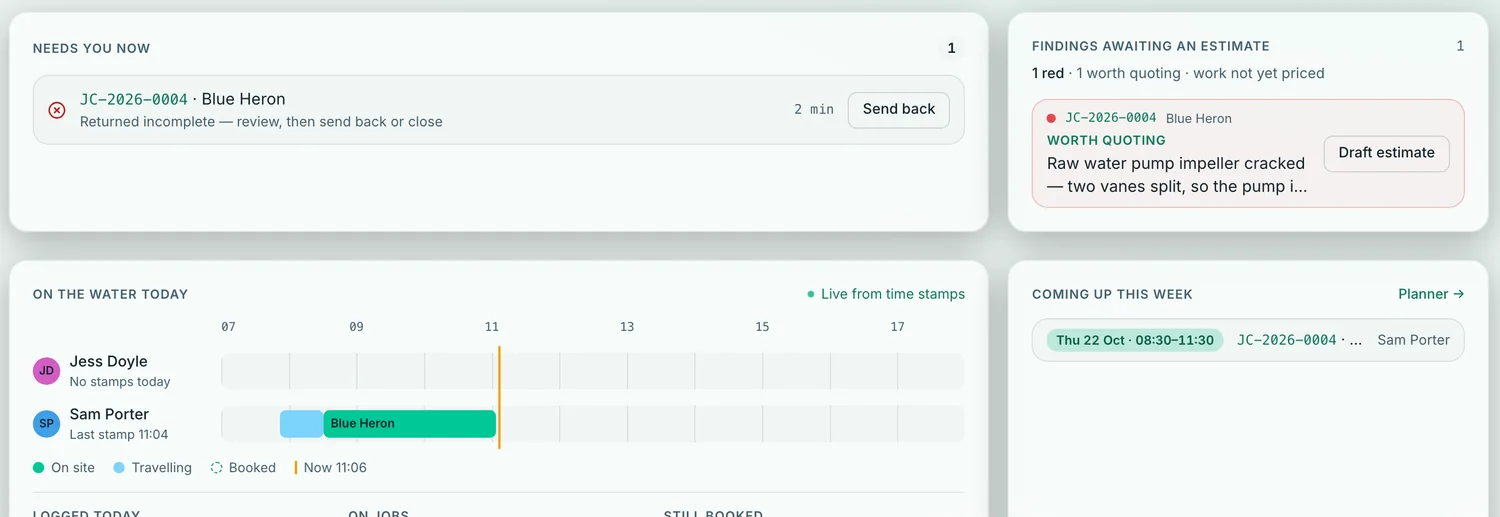
Switch to hours and each job shows its booked time. Under it, a second bar shows when the engineer actually arrived and left, taken from their stamps.
So you can see a late start, or a job running over, without ringing anyone.
- Booked hours above, real arrival and leaving below
- A plain verdict when you hover a job
- Fit the board to the screen, or let it run to the full page
Nothing falls off the board.
Under the board, two lists keep work from being forgotten. Won — awaiting a job shows accepted estimates that have no job yet. Jobs with no date shows the jobs nobody has put a day on.
Click one to open it. When a quote is won, Start the job turns it into a job card.
- Won estimates with a start date appear on the board in their own colour
- Several engineers can be on one job: a lead and a crew, each drawn on the board
- Move engineers’ rows into the order you like
An example, drawn for this page.
Planning the week, then and now.
Planning the week
Telling an engineer what to do
Questions about the planner
How does the engineer find out about a job?
It appears in their list straight away, with a chime if the app is open. If they have notifications switched on they also get a New job notification, and on an iPhone the app has to be on the home screen. If you move the date later, their list updates straight away and they get a job changed email a few minutes afterwards.
Does it stop me double-booking an engineer?
It warns you. When you save a job from the schedule picker, a message names an engineer who is already booked over those dates. It doesn’t block you, so you stay in charge.
Can more than one engineer work on a job?
Yes. Tick several engineers when you assign a job: the first is the lead and the rest are the crew. The board draws a bar for each of them, and the crew’s phones show the job too.
Can I plan from my phone?
On a phone the planner shows one day at a time, with a card for each engineer and a list of who is free. You schedule on a computer.
Plan the week once. Let the phones follow.
Two months free, no card. Setup included. Sign up with your work email and the app walks you through your company, your team and your first job.