Office dashboard and pay
You see it as it happens. Not when they ring.
The engineers’ own time stamps show on your screen as they happen, next to the one thing that needs you. At the end of the week the hours are added up for payroll.
See the whole day on one screen.
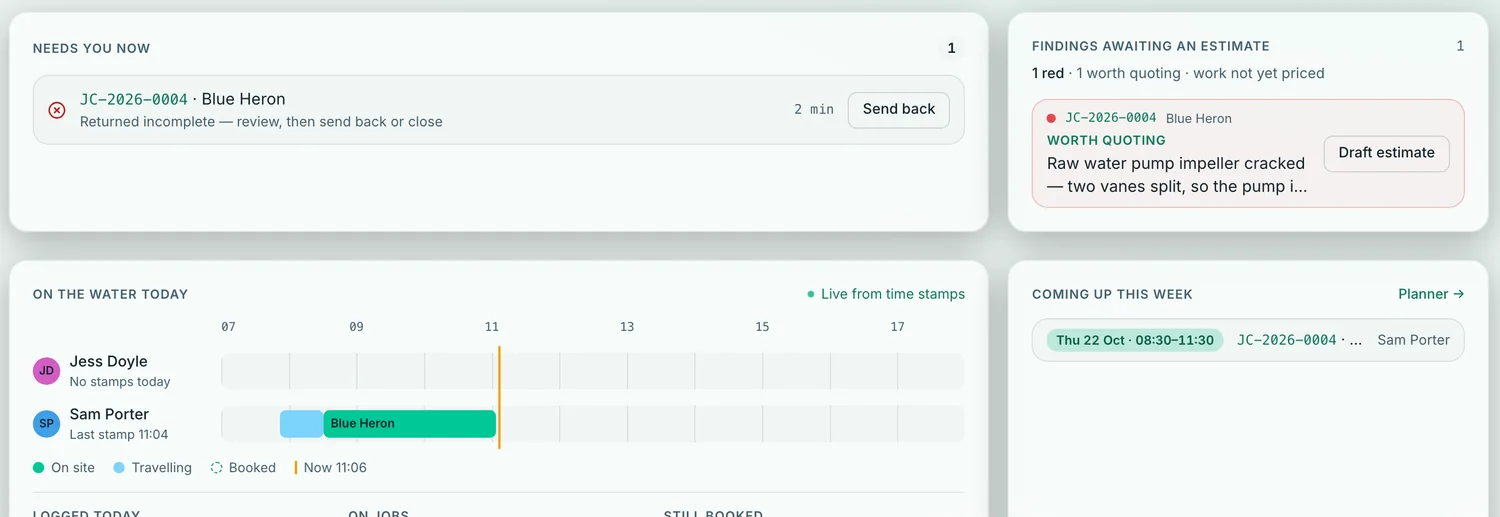
Your dashboard opens on Today: what needs you now, any work the engineers found that isn’t priced yet, who is on the water, and what is coming up this week.
The bars are drawn from the engineers’ own time stamps. Travelling is blue, on site is green, booked time is dashed, and a line marks now.
- Six numbers on the page: jobs closed, hours on jobs, turnaround, work won, win rate and findings to price
- Who is travelling, who is on site and who hasn’t started, without a phone call
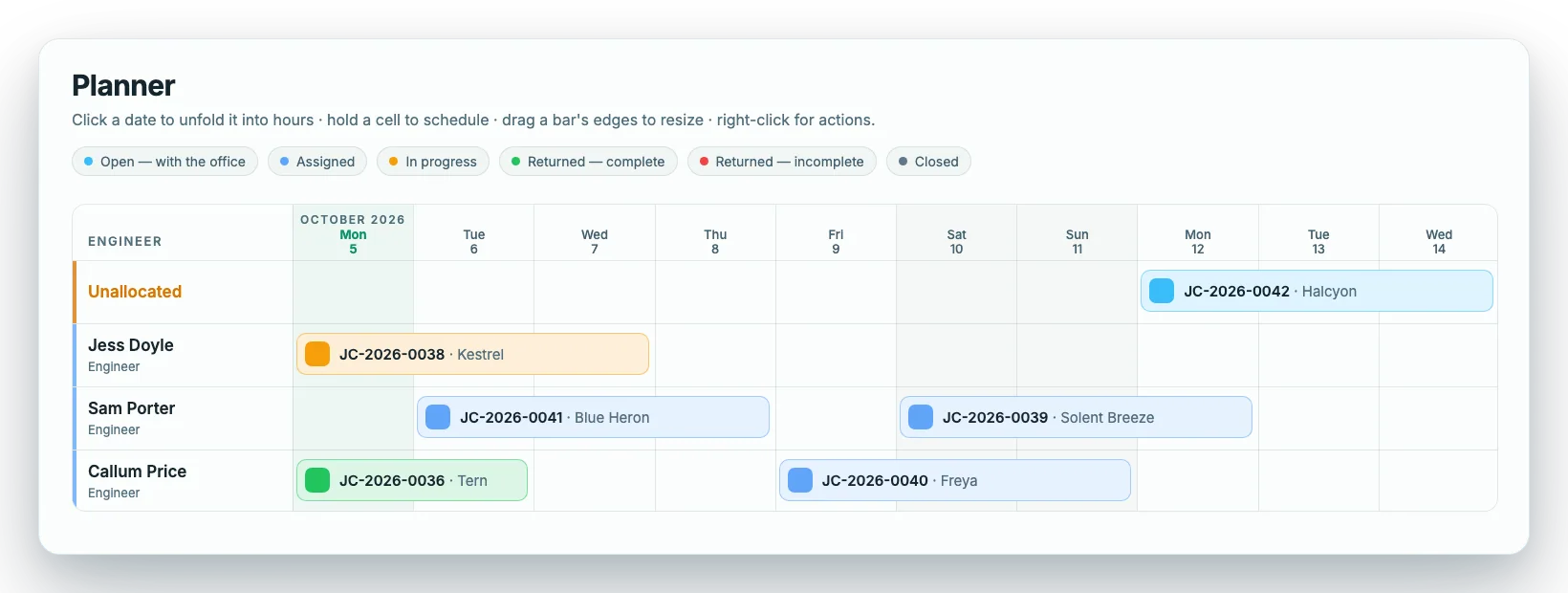
- Coming up this week, one click from the planner
Swipe sideways to see the whole screen.
- 1Needs you now. A job that came back incomplete waits here until you send it back or close it.
- 2On the water today. Each engineer’s day, live from time stamps, with a marker for now.
- 3Coming up this week. The next jobs, with a link to the planner.
- 4Findings awaiting an estimate. Work the engineer found that isn’t priced yet.
The office dashboard, as it looks in the app.
What needs you comes first.
Needs you now is a short list in priority order, with the one button that deals with each line.
An engineer asking for help comes first. After that: a video that failed, clips stuck on a phone, jobs that came back incomplete or complete, accepted estimates with no date, and jobs with nobody on them.
- One action per line: Reply, Open video, Send back, Close, Set date or Assign
- A reminder once a day when something is overdue
- JC-2026-0041 · Blue HeronSam Porter needs helpReply
- JC-2026-0038 · Ocean ExplorerA video didn’t uploadOpen video
- JC-2026-0004 · Blue HeronReturned incomplete: review, then send back or closeSend back
- QUO-2026-0012 · Westhaven MarineEstimate accepted, no date yetSet date
- JC-2026-0044 · Blue HorizonNobody on this jobAssign
An example, drawn for this page.
When an engineer is stuck, you know straight away.
If the engineer taps Get help from the office and says what is stopped, a banner reading Work stopped lands on your dashboard with the job, the engineer and what they wrote. You acknowledge it, or reply in the job’s chat.
When you send a customer their report link, you can see when it was opened, and replace the link if you need to.
- The engineer’s own words, with the job and the time
- Acknowledge it, or answer in the job’s chat
- See when a customer’s report link was opened
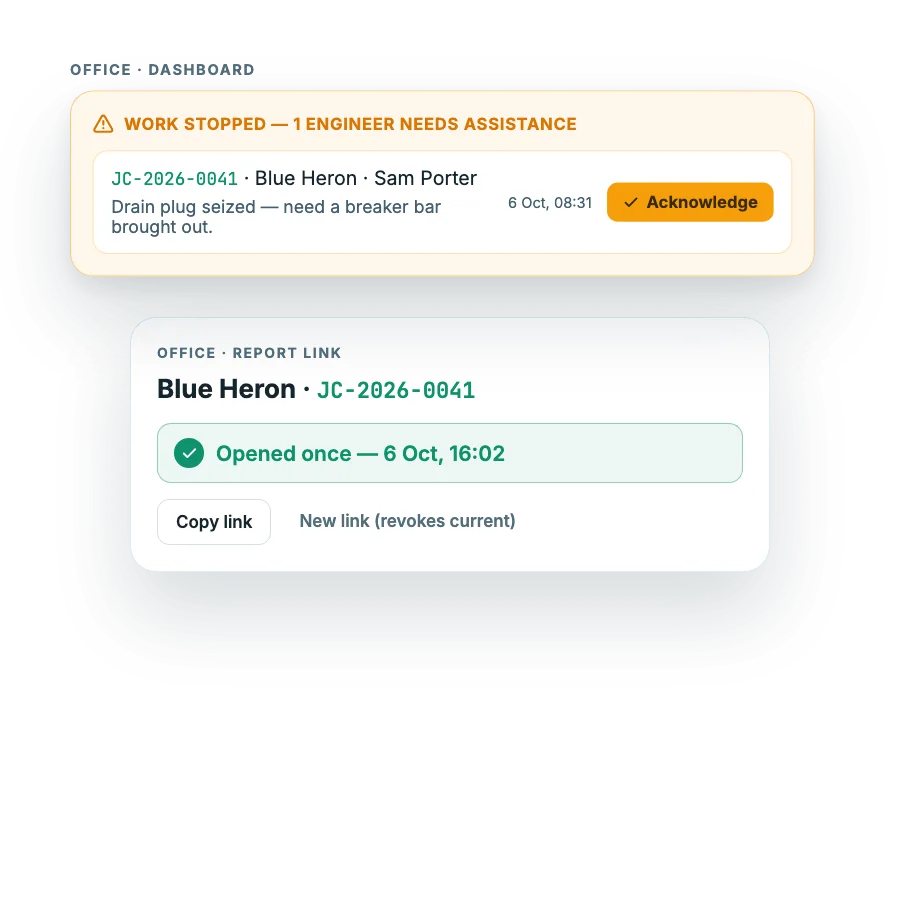
- 1Work stopped. The job, the engineer and what they wrote.
- 2Acknowledge. Tell the engineer you have seen it.
- 3Opened once. When the customer opened their report link.
On your dashboard, as it looks in the app.
Set off. At the boat. Hand in. The day draws itself.
The engineer taps Set off when they leave, and I’m at the boat when they arrive. Handing the job in stamps Leaving the boat for them, and Back at the workshop is there if they head back. The time is the moment they pressed.
Each time stamp keeps where the phone was at that moment. That is a company setting, and you can turn it off. Nothing is tracked in between.
- Pressed the wrong one? The latest stamp can be undone
- A forgotten stamp can be set afterwards, up to six days back, and is marked set afterwards
- You are warned if a phone’s clock is out by more than 5 minutes or stamps arrive out of order
- Without signal, a stamp is saved on the phone and sent when it is back
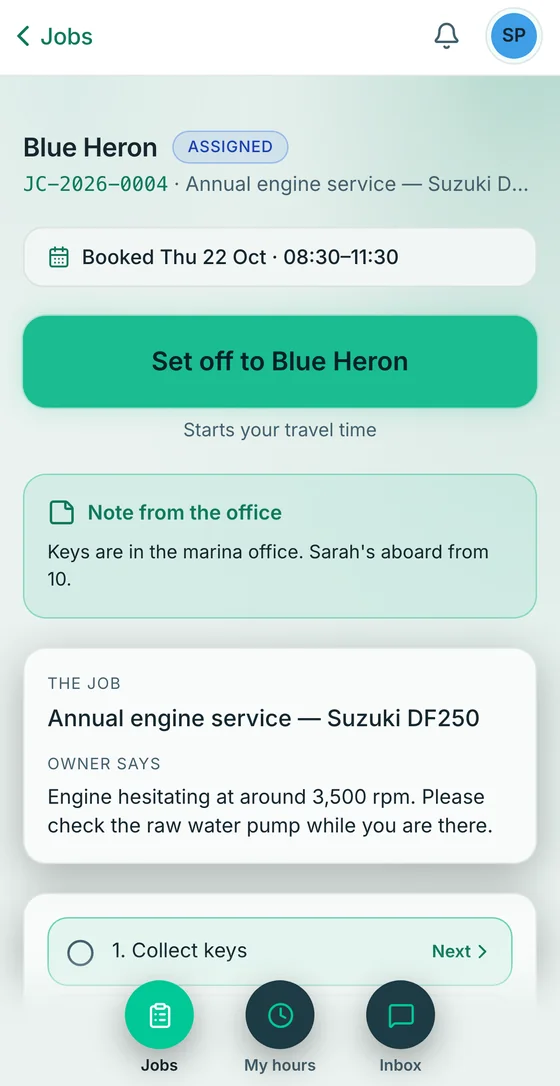
- 1The booking. What the engineer’s hours are compared with.
- 2Set off. Starts the travel time. At the boat, leaving and back at the workshop follow.
- 3Note from the office. Keys, access, who is aboard.
What the engineer sees on their phone.
Hours in. Payroll out.
A visit is the travel out, the time on site and the travel back, worked out from the stamps. You choose whether travel is paid, whether to round to 1, 5 or 15 minutes, and when overtime starts each week and at what rate.
Give each engineer an hourly rate, and run payroll for a week, a fortnight or a month. If an engineer’s time is wrong they ask for a correction and you approve or decline it, with the payroll shown before and after.
- On-screen table and a timesheet for each engineer
- A payroll PDF with every visit and every warning, and a timesheet PDF for each job
- Two CSV files, for jobs and for time stamps
- It adds up hours. It isn’t a payroll system: no tax, no holiday, no pension
| Engineer | Travel | On site | Regular | Overtime |
|---|---|---|---|---|
| Sam Porter | 5h 12m | 27h 40m | 32h 52m | — |
| Jess Doyle | 6h 05m | 30h 15m | 36h 20m | — |
| Callum Price | 5h 40m | 33h 50m | 37h 30m | 2h 00m |
Internal: pay information
An example, drawn for this page.
Then and now.
Knowing where everyone is
A stuck engineer
Hours and payroll
Questions about the office view and pay
How do engineers’ hours get to payroll without timesheets?
The engineer taps Set off and I’m at the boat, and handing the job in stamps leaving. KeelSync Service works out the travel, the time on site, the regular hours and the overtime from those stamps and the rules you set, and gives you a payroll PDF and CSV files to send to whoever runs your payroll.
Is it a payroll system?
No. It adds up the hours. It doesn’t do tax, National Insurance, pensions, breaks, holiday or sickness, and it doesn’t lock a period once you have run it. Treat the payroll PDF as the hours, not the pay slip.
Does it track where my engineers are?
Each time stamp keeps where the phone was at that moment. That is a company setting, and you can turn it off. Nothing is tracked in between, so there is no live tracking.
What does on site mean?
The time between the I’m at the boat and Leaving the boat stamps. It is not worked out from a location.
Does KeelSync Service do invoicing?
No. KeelSync Service doesn’t do invoicing or accounting, and it has no link to Xero, Sage or QuickBooks. It records the work and the hours, and gives you the PDF and CSV files.
See the day. Skip the Sunday night.
Two months free, no card. Setup included. Sign up with your work email and the app walks you through your company, your team and your first job.